
Want to know how much time you really spend in Chrome, Discord or your favorite game? On a phone you'd open Screen Time or Digital Wellbeing. On Windows, there's no direct equivalent for your own account.
Here's what Windows can show you, and how to get a real screen time report for your PC.
What Windows shows you
Battery usage (laptops only)
On a laptop, go to Settings › System › Power & battery › Battery usage (Windows 11) or Settings › System › Battery (Windows 10). You'll see a list of apps with how much of the battery they used, and on Windows 11 how long each was in use or running in the background over the last 24 hours or 7 days.
Limits: it's only available on devices with a battery, it only goes back 7 days, and it's built to explain battery drain, not to show your habits.
Task Manager › App history
Task Manager has an App history tab, but it shows CPU time and network use. An app can be open all day and show almost no CPU time, so this doesn't tell you how long you used it.
Microsoft Family Safety (child accounts)
If your child has a Microsoft account in your family group, Family Safety shows their app and game activity and screen time. It doesn't work for your own adult account.
Track app usage with StayFree
StayFree for Windows is a free app that works like Screen Time for your PC. It tracks every app and game automatically and keeps your full history, not just the last week.
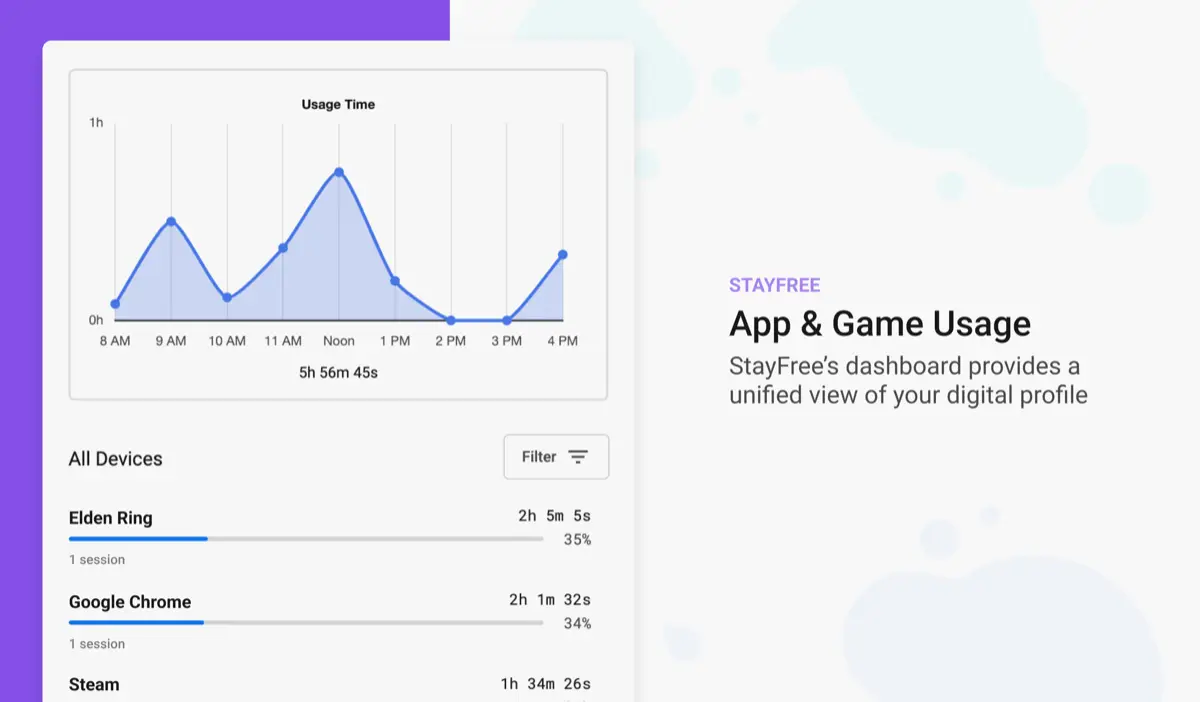
- Install StayFree from the Microsoft Store. It's free, with no ads.
- Use your PC as usual. StayFree runs in the tray and records time in whichever app is in front.
- Open the dashboard to see today, yesterday, the last 7 or 30 days, this month, or a custom range of up to 90 days.
What you'll see
- Time per app and game, down to the second, with the number of sessions.
- Hourly and daily charts to spot when you lose the most time.
- A comparison with the previous period, so you can tell if you're improving.
- Categories like Game, Social Networking and Entertainment, with time per category.
- Your computer's on-time, to compare active use with how long the PC was on.
StayFree stops counting after 60 seconds without keyboard or mouse input (except in browsers and in video and call apps like Zoom and VLC, where you may be watching without touching anything) and pauses while the screen is locked, so walking away from your desk doesn't inflate your numbers.
Track websites too
On its own, a desktop app only sees your browser as one app (for example "Google Chrome"). To see time on each website, add the free StayFree extension for Chrome, Edge or Firefox and connect it to the desktop app. Website time then appears next to your apps.
Export your data
You can export your usage time and usage counts to a spreadsheet for your own analysis, or back up your full history.
From tracking to limits
Once you know which apps take most of your time, you can do something about it. StayFree lets you set daily limits, schedules and session limits on any app. See how to limit app time on Windows.