
StayFree for Windows
Track and limit app time on Windows
StayFree is a free app usage tracker and app blocker for Windows 10 and 11. See how long you spend in every app and game, then set limits that actually stick.
Free · No ads
4.8 on the Microsoft Store · 10,000+ users
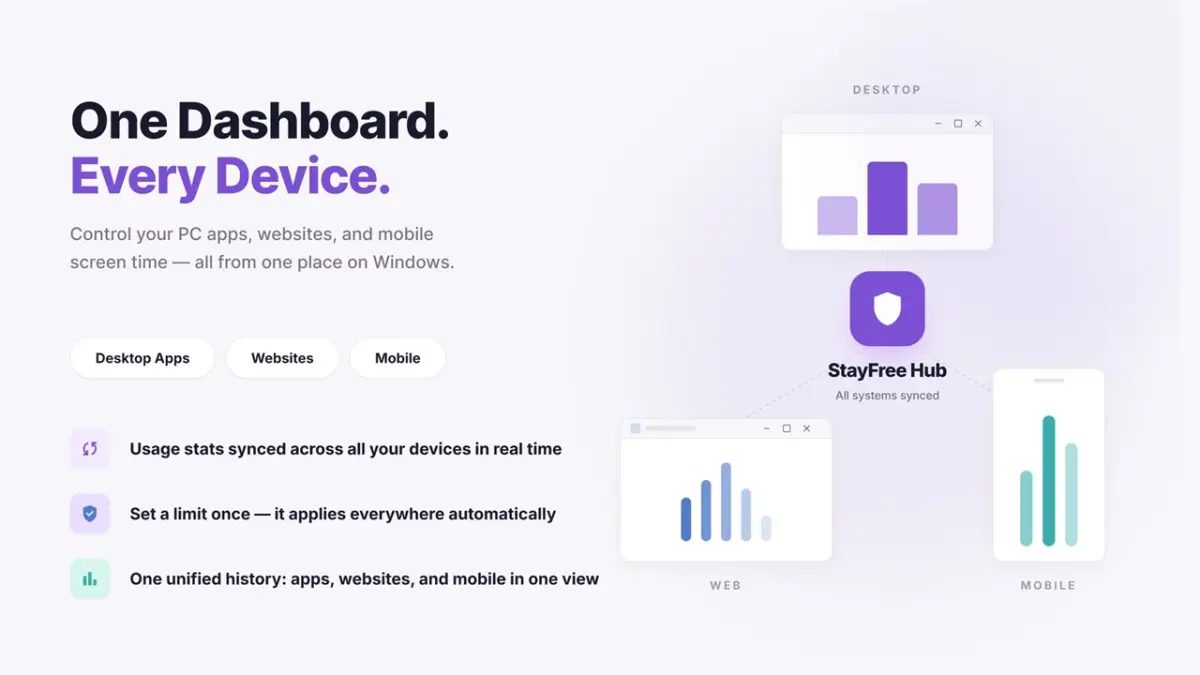
Everything you need to manage screen time on Windows
Tracking and blocking for every app and game on your PC, free.
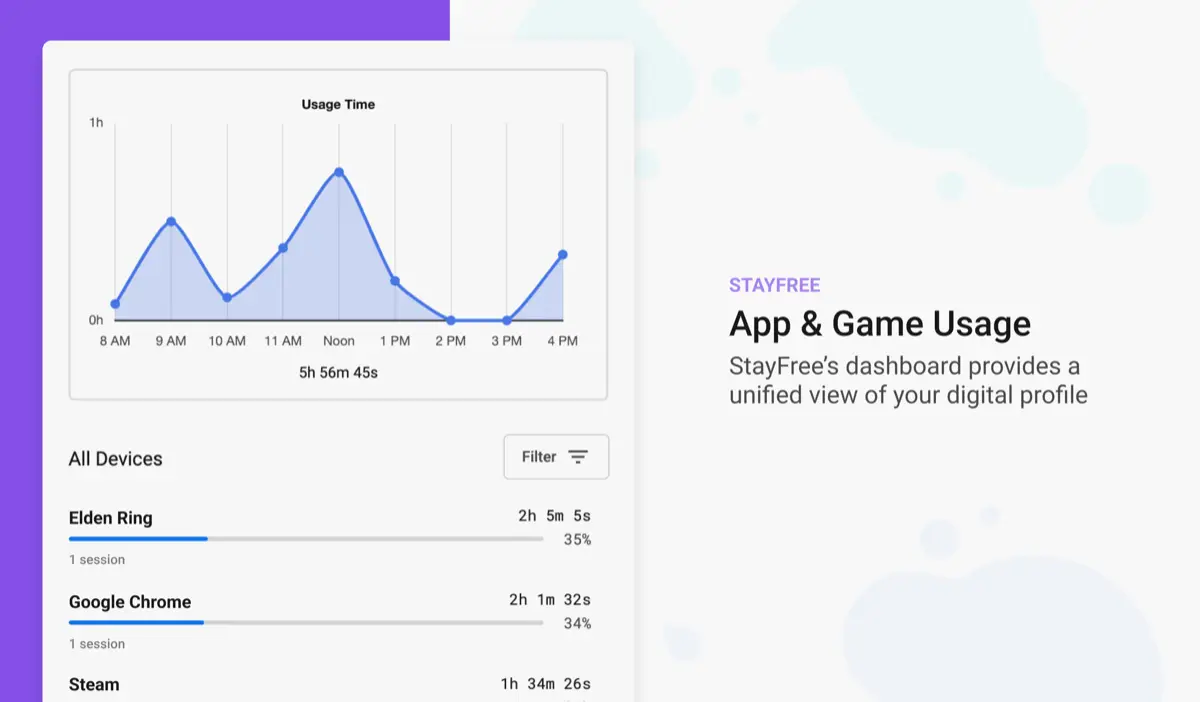
Track app and game usage
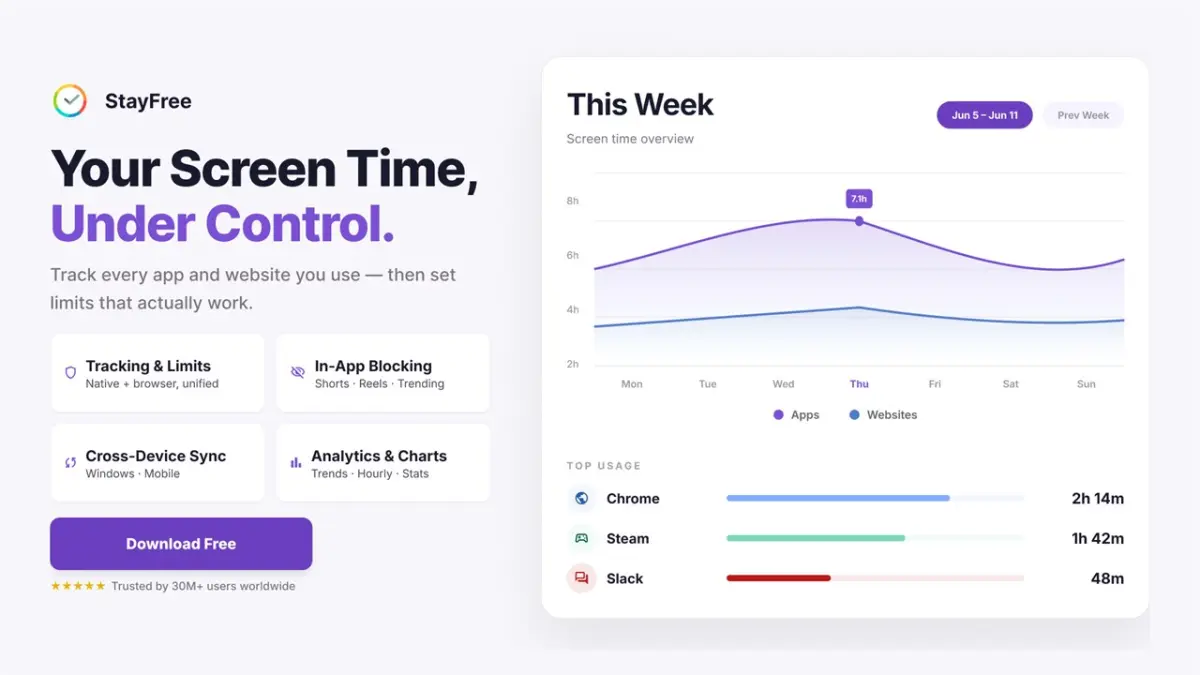
See exactly how long you spend in every app and game, with hourly and daily charts, session counts and comparisons with the previous period.
Daily limits for any app
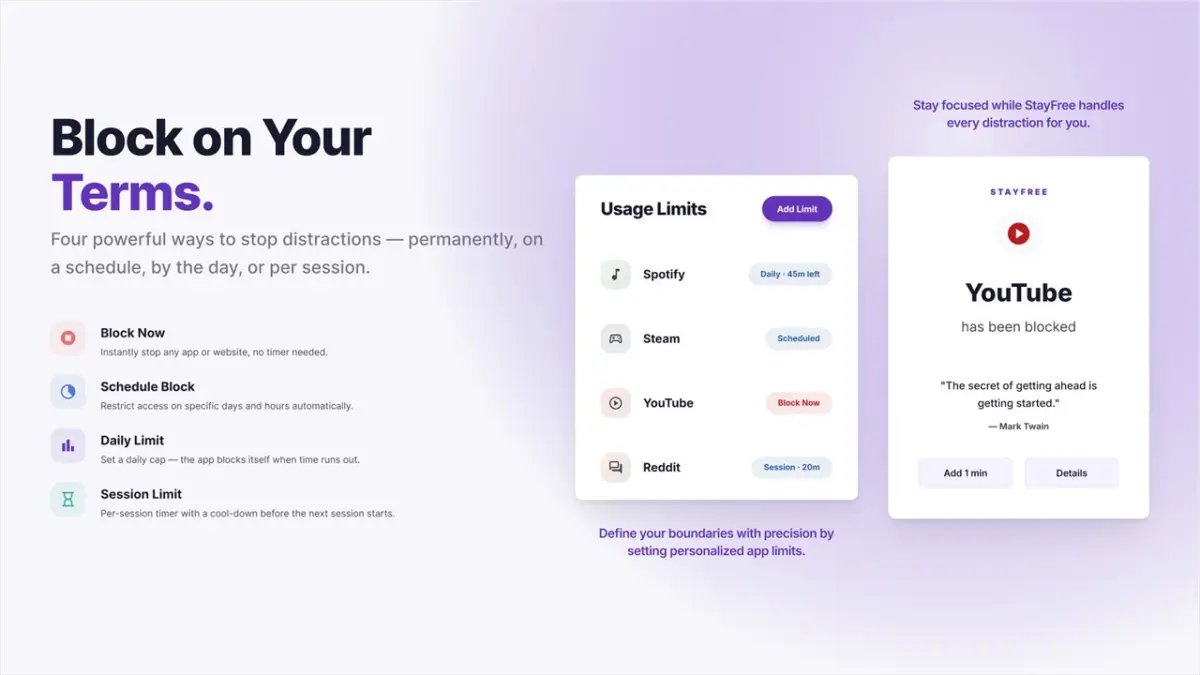
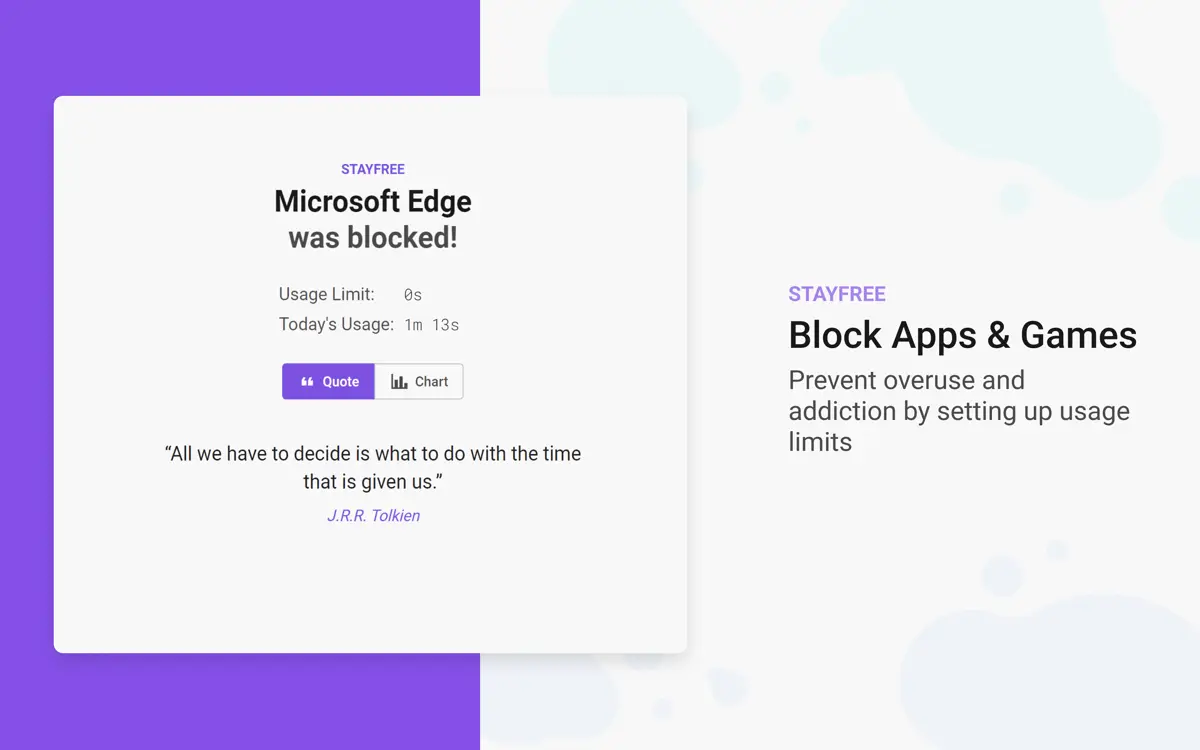
Give an app or game a daily time budget. You get a heads-up 3 minutes before the limit, then StayFree blocks it until your daily limit resets.
Scheduled blocks
Block distracting apps during work or study hours on the days you choose, automatically.
Session limits
Cap how long each session can last and add a cool-down before the next one, so quick checks stay quick.
Block apps and lock your limits
Block an app instantly, and protect your limits with a PIN or a text challenge so you can’t turn them off on impulse.
Pomodoro focus timer
Run focus sessions with breaks. Distracting apps you pick are blocked while you focus (websites too, with the browser extension), with a floating timer on screen.
Categories
Group apps into categories like Game, Social Networking or Entertainment, see time per category and limit a whole category at once.
Sync with your phone and browser
Connect StayFree on Android, iPhone and your browser to see all your screen time in one dashboard and share limits across devices.
Export your history
Export usage time and usage counts to a spreadsheet, or back up and restore your history and settings.
See StayFree for Windows
How to start limiting app time on Windows
- 1
Install from the Microsoft Store
Get StayFree for free from the Microsoft Store. It starts with Windows and runs quietly in the system tray.
- 2
Let it track your day
StayFree records time in every app and game automatically. Open the dashboard any time to see today, the last 7 days, this month or a custom range.
- 3
Set your first limit
Pick the app that eats your time, choose a daily limit, schedule or session limit, and StayFree will block it when time is up.
StayFree vs. built-in Windows tools
Windows can show some app activity, but it has no screen time limits for your own account. Here is what StayFree adds.
| Feature | Windows (built-in) | StayFree |
|---|---|---|
| Daily time per app | Battery usage page, laptops only | Exact time and sessions, hourly charts |
| App time limits for yourself | Only for child accounts (Family Safety) | Any app or game, on your own account |
| Scheduled and session limits | No | Yes |
| Website time and limits | Edge activity for child accounts only | Chrome, Edge and Firefox with the extension |
| Phone and PC in one dashboard | No | Android, iPhone, Mac and browser |
| Export history to a spreadsheet | No | Yes |
Track and block websites too
Add the free StayFree browser extension and connect it to the Windows app. Website time shows up next to your apps, you can set limits on sites like YouTube or Reddit, and the extension can hide distractions like YouTube Shorts and Instagram Reels.
Frequently asked questions
How do I see app usage time on Windows?
Windows only shows a rough per-app battery and activity summary in Settings. To see exactly how long you use each app every day, install StayFree from the Microsoft Store. It tracks every app and game automatically and shows hourly and daily charts, so you can see where your time goes.
How can I limit how long I use an app on Windows 11?
Windows 11 has app limits only for child accounts through Microsoft Family Safety. With StayFree you can set a daily limit, a schedule or a session limit on any app or game for your own account. When the time runs out, StayFree blocks the app until the limit resets.
Does StayFree work on Windows 10?
Yes. StayFree works on 64-bit Windows 10 and Windows 11 and is installed from the Microsoft Store.
Is StayFree for Windows free?
Yes. StayFree for Windows is free on the Microsoft Store, with no in-app purchases and no ads.
Can StayFree track and block websites on Windows?
Yes, with the free StayFree browser extension for Chrome, Edge or Firefox. Once you connect it to the desktop app, website time appears in the same dashboard and you can set limits on websites too. The extension can also hide distracting parts of sites, like YouTube Shorts.
Can I limit games like Steam or Roblox?
Yes. StayFree tracks every desktop app and game, including launchers like Steam, and you can put daily limits, schedules or session limits on any of them.
Does StayFree count time when I’m away from my computer?
No. StayFree stops counting after 60 seconds without keyboard or mouse input, and pauses while your screen is locked. Chrome, Edge, Firefox and Safari, plus Zoom and VLC, keep counting while idle, so time spent watching videos or in calls still shows up.
Do I need an account to use StayFree?
No. You can use StayFree without signing in. An account (or a pairing code) is only needed if you want to sync your usage and limits with your phone or other computers.
Take back your time on Windows
Free, trusted by 30M+ people across all StayFree apps.