
If you've ever opened your PC "for five minutes" and looked up two hours later, you're not alone. Phones have had screen time limits for years, but Windows still doesn't give you a simple way to say "no more than an hour of games a day" for your own account.
This guide covers the built-in options in Windows 11 and Windows 10, what they can and can't do, and how to set real time limits on any app or game.
The short answer
- For a child's account: use Microsoft Family Safety. It has app and game time limits built in.
- For your own account: Windows has no app time limits. Use a free app like StayFree for Windows to set daily limits, schedules or session limits.
Option 1: Microsoft Family Safety (child accounts only)
Microsoft Family Safety is built into Windows and is free. It lets a parent set screen time and app limits for a child's Microsoft account.
- Create a family group at family.microsoft.com and add your child's Microsoft account.
- Make sure your child signs in to Windows with that account.
- In Family Safety, open your child's profile and go to Screen time.
- Under Apps and games, pick an app and set how long it can be used each day.
What it can't do: Family Safety only works for child accounts in a family group. You can't use it to limit your own apps, and it needs everyone to use a Microsoft account.
Option 2: Focus in Windows 11
Windows 11 has a Focus feature (in the Clock app, and in Settings › System › Focus on newer versions). It starts a timer, turns on Do Not Disturb and hides notification badges.
What it can't do: Focus doesn't block anything. You can still open any app during a focus session, so it won't help if a game or social app is the problem.
Option 3: Set app limits with StayFree
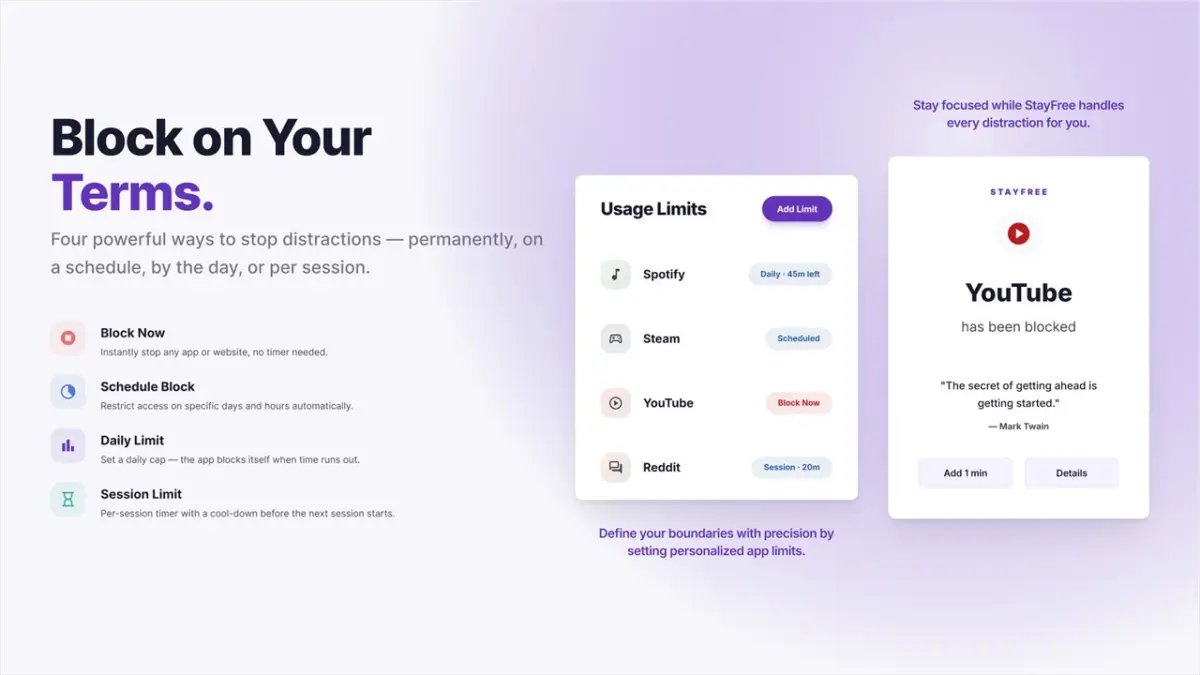
StayFree is a free app usage tracker and app blocker for Windows 10 and 11, rated 4.8 on the Microsoft Store. It works on your own account and gives you four kinds of limits.
Step 1: Install StayFree
Get StayFree from the Microsoft Store. It's free, with no ads and no in-app purchases. It runs in the system tray and starts tracking right away.
Step 2: See where your time goes
Use your PC normally for a day or two. Then open StayFree to see how long you spent in each app and game, by hour and by day. This tells you which apps actually need a limit.
Step 3: Choose a limit
Pick an app and choose how to limit it:
- Set a daily usage limit: a time budget per day, for example 1 hour of games. You get a warning 3 minutes before the limit.
- Block on a schedule: block the app on certain days and hours, like weekdays from 9 to 5.
- Set a session limit: cap each session (say, 20 minutes of a game) with a cool-down before the next one.
- Block permanently: block the app right away, with no timer, until you remove the block.
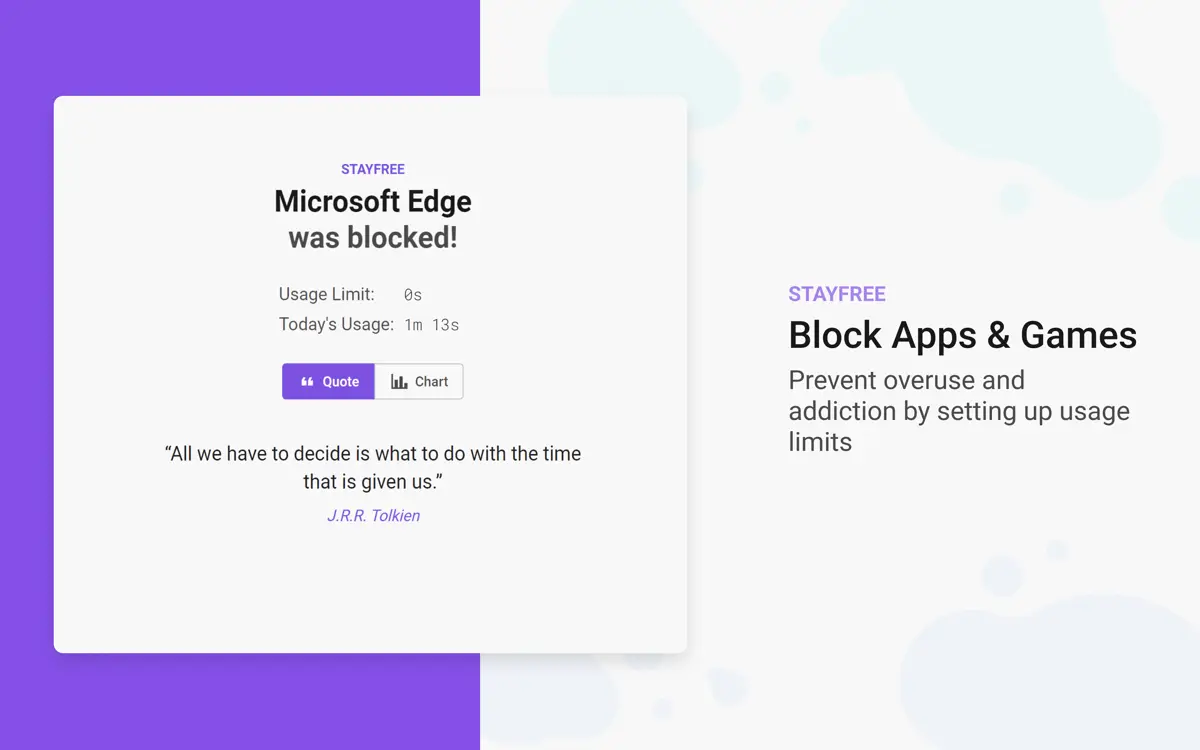
When time is up, StayFree shows a block screen over the app until the limit resets.
Step 4: Make your limits hard to skip
Limits only work if you can't turn them off in a weak moment. In StayFree's settings you can lock your limits with a PIN or a text challenge (typing out a long phrase before you can change anything).
Tips that make limits stick
- Start with one app. Limit the app that costs you the most time first, not everything at once.
- Use categories. Group all your games, or all social apps, into a category and give the whole category one daily limit.
- Try a focus timer. StayFree's Pomodoro timer blocks the apps you choose (and websites, with the extension) while you work, then lets you take a break.
- Cover your browser too. Add the free StayFree browser extension for Chrome, Edge or Firefox and connect it to the desktop app to limit websites like YouTube and Reddit.
- Connect your phone. If you also use StayFree on Android or iPhone, you can see all your screen time in one dashboard.
Summary
| Option | Works for | Time limits per app | Blocks the app |
|---|---|---|---|
| Microsoft Family Safety | Child accounts | Yes | Yes |
| Windows 11 Focus | Anyone | No | No |
| StayFree | Anyone, any account | Yes | Yes |