
Macs have a built-in Screen Time feature, so you can see how you spend your time and set app limits without installing anything. It's a good start, but it has some gaps. This guide shows how to use it, and when a dedicated app like StayFree works better.
Track your app usage with Screen Time
- Open System Settings › Screen Time (on macOS Monterey, System Preferences › Screen Time).
- Click App & Website Activity and turn it on.
- Use your Mac as usual. Come back later to see your daily and weekly usage by app and category.
If you use the same Apple ID on your iPhone or iPad, you can turn on Share across devices to see all your Apple devices together.
Set app limits with Screen Time
- Go to System Settings › Screen Time › App Limits and turn it on.
- Click Add Limit, choose an app or a whole category, and set a time.
- Optionally set Downtime to block most apps during certain hours.
When you reach the limit, macOS shows a time limit screen.
Where Screen Time falls short
- Limits are easy to skip. Unless you set a Screen Time passcode, you can click Ignore Limit and keep going.
- No session limits. You can't say "20 minutes at a time, then take a break".
- Apple devices only. If you also use a Windows PC or an Android phone, that time isn't counted.
- Websites are mostly Safari. Website tracking is most reliable in Safari, not Chrome or Firefox.
Limit apps on your Mac with StayFree
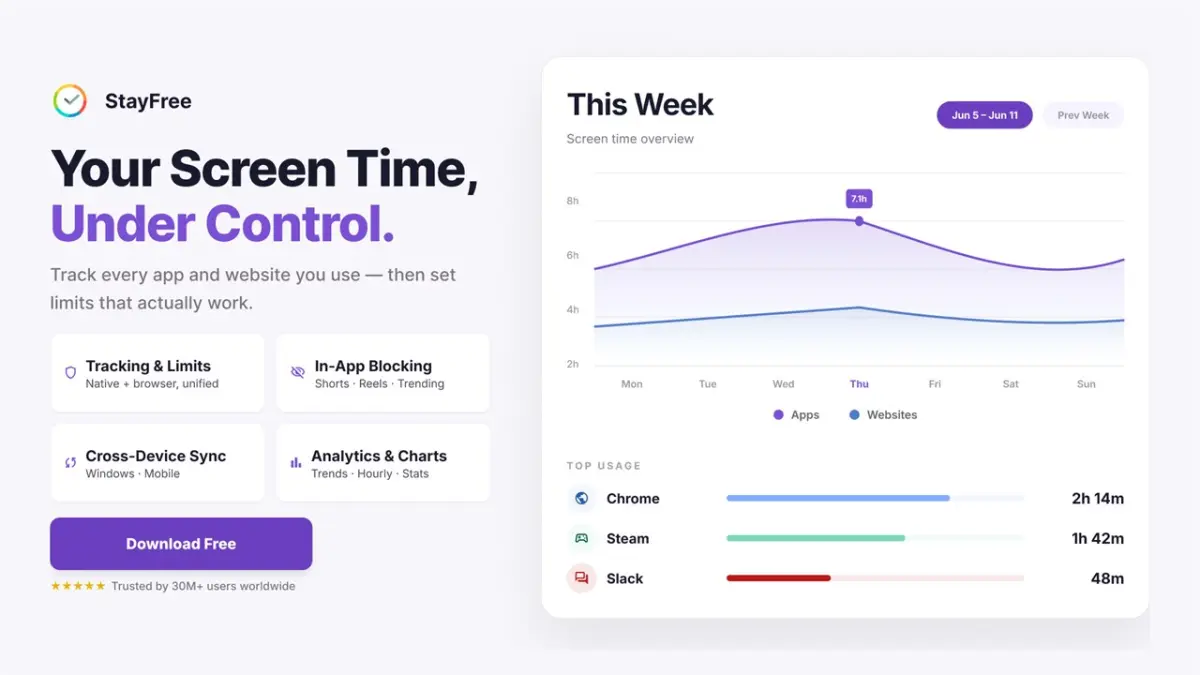
StayFree for Mac is a free app usage tracker and app blocker for macOS 12 or later, on Apple Silicon and Intel.
Step 1: Install StayFree
Download StayFree for Mac (choose Apple Silicon or Intel), open the file and drag StayFree to Applications.
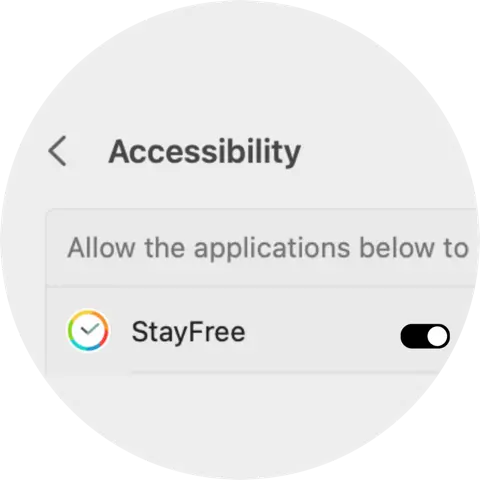
Step 2: Allow Accessibility access
StayFree needs the Accessibility permission to track the app in front and show its block screen. Go to System Settings › Privacy & Security › Accessibility and turn on StayFree. StayFree doesn't need Screen Recording.
Step 3: Set a limit
StayFree lives in your menu bar and starts tracking right away. Pick an app and choose:
- Set a daily usage limit: a time budget per day, with a warning 3 minutes before it runs out.
- Block on a schedule: block the app at certain times on certain days.
- Set a session limit: cap each session and add a cool-down before the next one.
- Block permanently: block it right away, until you remove the block.
When time is up, StayFree covers the app with a block screen until the limit resets.
Step 4: Lock your limits
Turn on a PIN or a text challenge in StayFree so you can't remove a limit on impulse.
Screen Time vs. StayFree
| Screen Time | StayFree | |
|---|---|---|
| Daily app limits | Yes | Yes |
| Session limits with cool-down | No | Yes |
| Pomodoro timer that blocks apps | No | Yes |
| Protect limits | Passcode | PIN or text challenge |
| Works with Windows and Android | No | Yes |
| Website tracking in Chrome/Firefox | Limited | Yes, with the browser extension |
| Export history to a spreadsheet | No | Yes |
You don't have to choose one: many people keep Screen Time on for their iPhone and use StayFree on their Mac and Windows PC to see everything in one place.