
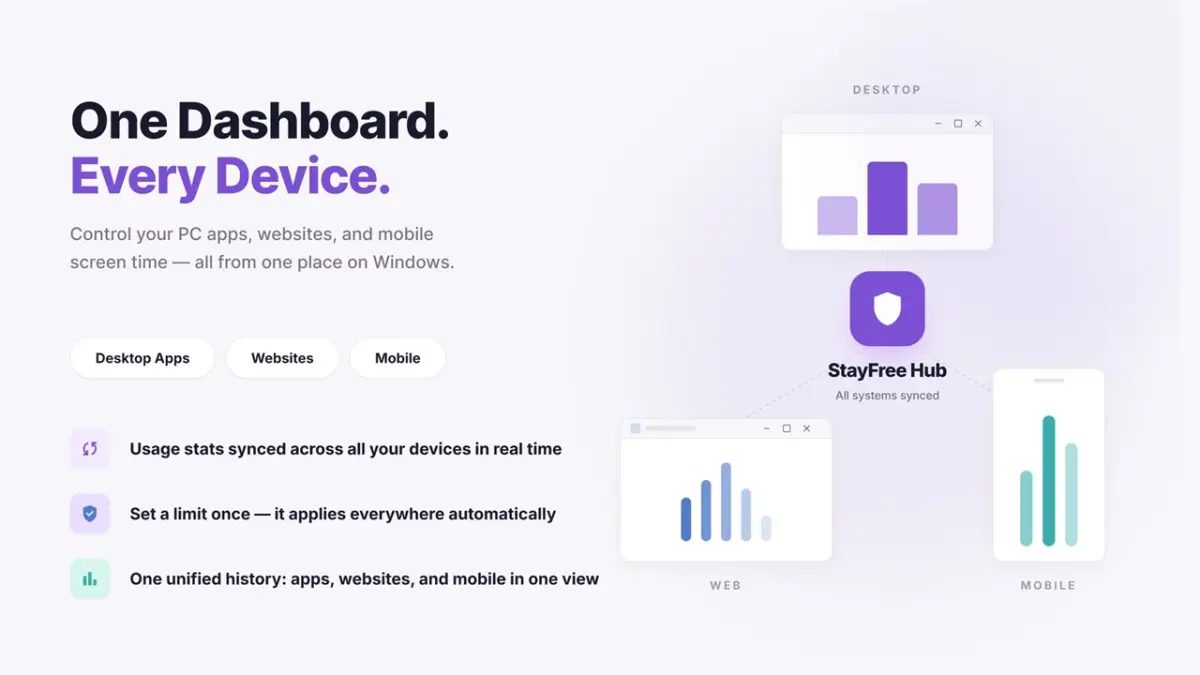
Open your phone's screen time report and you'll see a number like 4 hours 12 minutes. It feels like the truth about your day. It isn't.
That number leaves out the hours on your laptop: the YouTube tab, the game you "just checked", the feed you scrolled between meetings. For most people, the real total is a lot bigger, and the part your phone can't see is often where the time goes.
This guide covers the free screen time apps you already have, what they miss, and how to see and limit your screen time on every device for free.
The short answer
- Only use one phone? The built-in tools (Screen Time on iPhone, Digital Wellbeing on Android) are free and good enough to start.
- Use a phone and a computer? Use a free app that covers both, like StayFree, so you see one honest total and can set limits everywhere.
What a good free screen time app should do
Before you install anything, here's what's worth looking for:
- Track every app, not just a few. You should see time per app, per day and per hour.
- Count every device. Your phone, your computer and your browser, in one report.
- Set limits that actually stop you. Daily limits, schedules and session limits, not just reminders.
- Be hard to bypass. A limit you can turn off in two taps won't survive a bad evening.
- Be actually free. No trial that turns into a subscription, and no features hidden behind a paywall.
The free options you already have
iPhone: Screen Time
Screen Time is built into every iPhone. It shows your daily usage by app and category, and lets you set App Limits and Downtime.
What it misses: when you hit a limit, you can tap "Ignore Limit" and keep going, unless you set a Screen Time passcode. It only covers Apple devices, so your Windows PC or Android tablet never shows up.
Android: Digital Wellbeing
Most Android phones come with Digital Wellbeing (Samsung calls it Digital Wellbeing and parental controls). It shows your screen time, and you can set app timers and a Focus mode.
What it misses: app timers are easy to remove in Settings, and there's no PIN to stop you. It only knows about your phone.
Windows and Mac
Windows has no screen time limits for your own account. Microsoft Family Safety only works on child accounts. Macs have Screen Time, with the same strengths and gaps as on iPhone. We cover both in more detail in How to Limit App Time on Windows and How to Limit App Time on Mac.
StayFree: one free screen time app for every device
StayFree is a free screen time tracker and app blocker with apps for Android, iPhone, Windows, Mac and your browser. It has over 10 million downloads on Google Play alone. Install it on the devices you use and connect them, and you get one dashboard with your real total.
What you get, free:
- Detailed tracking: time per app and website, by hour and by day, with charts and comparisons with the previous period.
- Real limits: block an app on a schedule, give it a daily time budget, cap each session, or block it until you remove the block.
- Limits that stick: protect your settings with a password on Android, or a PIN or text challenge on your computer.
- Focus tools: a Pomodoro timer on your computer that blocks the apps you choose while you work.
- Every device in one place: connect your phone, computer and browser with a pairing code. No account needed.
What StayFree does on each device
| Device | What it tracks | What you can limit |
|---|---|---|
| Android | Apps and websites | Apps and websites, with schedules and a sleep mode |
| iPhone and iPad | Apps and websites | Apps and websites, with focus schedules |
| Windows | Apps and games | Apps and games, with 4 kinds of limits |
| Mac | Apps and games | Apps and games, with 4 kinds of limits |
| Chrome, Edge and Firefox | Websites | Websites, plus Shorts, Reels and keywords |
Set it up in 5 minutes
- Start with your phone. Install StayFree from Google Play or the App Store and give it the permissions it asks for.
- Add your computer. Get StayFree for Windows or Mac. On Windows it's in the Microsoft Store, on Mac it's a direct download.
- Add your browser. Install the free extension for Chrome, Edge or Firefox to track and limit websites.
- Connect your devices. Pair them with a code from the app. Your dashboard now shows one total for your whole day.
- Set one limit. Look at your top app across all devices, and give just that one a daily limit. Add more later.
Tip: Don't limit everything on day one. Let StayFree run for a few days first, so your limits are based on real numbers, not guesses.
Which free screen time app should you use?
| If you… | Use |
|---|---|
| Only use an iPhone | Built-in Screen Time |
| Only use an Android phone | Digital Wellbeing, or StayFree for stronger limits |
| Use a phone and a Windows PC | StayFree on both |
| Use a phone and a Mac | StayFree on both, or Screen Time if you're all-Apple |
| Lose most of your time in a browser | The StayFree browser extension |
The best screen time app is the one that sees your whole day. If your phone report says 4 hours, check what your computer adds. That number is where the real change starts.